Selasa, 31 Mei 2016

How to make smooth motions in MikuMikuDance Animation !

How do I make smooth motions in MikiMikuDance? How do I use the interpolation curves to make better motions? What is the secret for getting realistic model movement in MMD?

Let MikuMikuDance make smooth motions for you …

Easily make smooth motions with MMD!
I often get comments asking…
“How do I make smooth motions in my MMD animations?”
My answer is …
“Just let MikuMikuDance do it for you!”
Of course …


There’s more TO it than that!
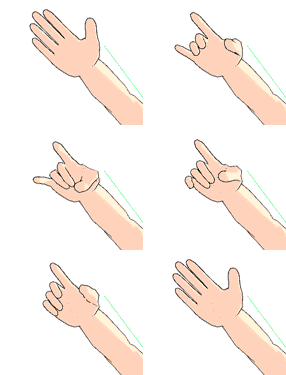
Timing is everything as you make smooth motions in MikuMikuDance!By its very design, MikuMikuDance creates smooth motions for you. You position a bone and Register it to mark the start of a motion. You advance the frame counter to the next “hard point” of your motion … you move the bone to the new position and you Register it.  MikuMikuDance creates the “in between” frames to animate the smooth motion as the bone shifts from the first position to the next position.


   Your job is to …
  • Prepare for the motion
  • Control the timing
  • Set the interpolation curve if needed


– Prepare for the motion …
Say you are well into an animation, on frame 75, and now you want to make Miku wink her right eye. There, on frame 75, you slide the Wink slider to create the wink and you Register it.
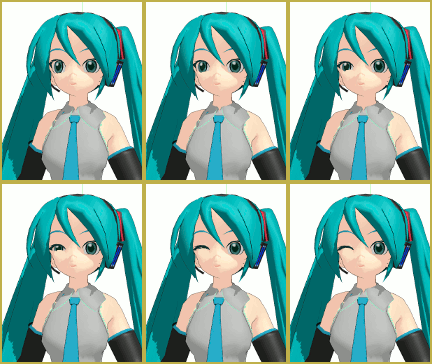

To start a new motion, you must do some preparation!
When you push play to watch your animation from the beginning, you notice that Miku’s right eye slowly closes, right from the start, until, when it get’s to frame 75, her eye is shut.

  That’s hardly a “wink”!
Before you had set that motion, you should have prepared for that new motion. In this case, you want to copy the old Wink setting to the new location a frame-ahead of where you want the  new wink-motion to start.
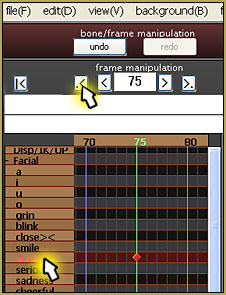
Select a bone and then click the rewind button to find the most recent diamond registered for that bone.

To find the previous setting of the “Wink bone”, click +Facial to expand the Facial bone list and then, click to highlight the bone Wink. Then click the “rewind” button to leap back to that bone’s most recent registered position. Now, click that diamond to make it red and Click COPY, beneath the bone menu list. This copies that diamond’s data.

Now, return to frame 75 … back-up a frame to frame 74,
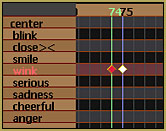

twoDiamonds

Miku's eye snaps shut in a single frame!and click PASTE … to put the old Wink position data into frame 74.
Now when you click Play …


… the animation plays from frame Zero to frame 75 … and nothing seems to happen until Miku’s eye “snaps shut” in Frame 75, the last frame.

-Control the timing …

If you wanted Miku’s eye to suddenly snap shut in frame 75, then you’re finished with that motion! … But suppose you’d like a more realistic “wink”?
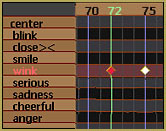

 New diamonds, spread apart, gives MMD room to create "in-between" frames.

To keep the “eye closed” position in frame 75, we will copy the frame-74 diamond, delete that frame-74 diamond, back up a few frames and paste it into frame 72, instead.
Now when you click Play …
… nothing seems to happen until the end of the animation, when Miku closes her eye in a natural-looking motion. MMD has created the “in-between” frames to create a smooth motion for you. So … now Miku has one eye shut.
To complete the Wink, Copy the diamond in frame 72 (the home position for this motion), and paste it into … what do you think, how about frame 77? … wherever you’d like to paste it to complete the motion. NOW when you click play, the eye quickly winks. Something about it looks bad … it’s the Duration of the wink! That eye is
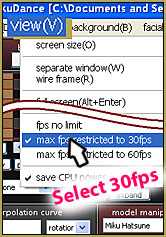
30fps 

only closed for one frame! We need to set things up to allow the eye to be closed for a more natural time … how about 3/4 of a second?
We want to set our animation speed to 30-Frames per second, the YouTube “normal”. Click the VIEW menu and select the 30fps setting at the bottom of that list of options.

Thirty Frames per Second …

An MMD animation runs at 30-frames/second. We want our wink to last 3/4 of a second … 3/4 of thirty … One-quarter of 30 equals 7 or 8 frames. I will set our wink to last for 21 frames (3×7).


Copy/Advance the frame counter/Paste/Delete

The data in frames 75 and 77 need to be copied and pasted so that the eye stays closed until … frame 96 (21 frames of “wink eye closed”). Highlight the two diamonds (75 & 77) while holding down the Shift key so that you can select them both. Click COPY. Advance the frame counter to frame 96 and click PASTE. NOW we have go to back to frame 77 and remove the diamond that makes Miku’s eye pop open … we want her eye to stay closed for the
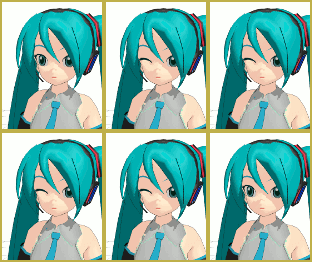
 We now have a nice "wink" motion.
MikuWink
entire 3/4 of a second.


Now when you click Play …
… we have a nice wink motion.
To make that wink look more cute, you will want to add some other head motions … and camerawork … (this gif makes it look like someone yanks on her tie … but you get the idea!) … just keep at it until you’ve got everything set just the way you want it!

-Set the Interpolation Curves …

The interpolation curves allow you to set the dynamics of a particular motion … like “start slow and accelerate through the motion” … like reaching back as you start to throw a ball; the hand with the ball might start at the waist and make a sudden stop as it reaches the end of the over-the-shoulder wind-up-for-the-pitch motion … and then accelerate to high-speed as the arm swings forward to pitch that fastball! Without an interpolation curve, the action would look like a robot motion.LearnMMD.com has several great articles about using the interpolation curves … be sure to read them … become a Motion-making master!


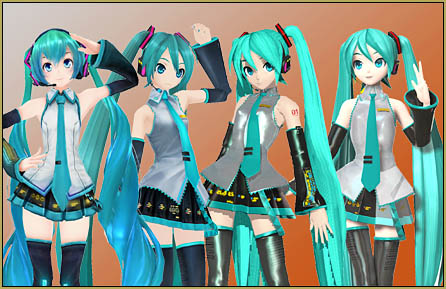
Professionally made models FOUND !!

Sometimes… we wish that we could have the models in Project DIVA, Mitchie M’s Burenai Ai de, Arcade Future Tone, and use them, for once…

BUT, that’s going to happen right now!
Professionally made models FOUND!

Find the professionally made models, or, at least, models that LOOK like them ... and enjoy!

After months and months of searching and searching, looking for the best riggers and model makers in deviantArt, I have found the best ones that look the best! And the most similar to the professional models! I have been wanting to share with you one of my biggest achievements in finding the best models that are hard or difficult to find.
You know models that look like these? Compare the differences and find the ones that look better. Fiddle with their toon files and spa’s and see if they look better, if they don’t, undo the changes.


arcade future toneI have come across the best artist on DA, and it’s Luke-Flame (http://luke-flame.deviantart.com/) for the best looking Project DIVA Arcade Future Tone models.
He makes not just the default models, but also all of the customized models from Miku, Rin, Len, Meiko, Kaito and Luka, he doesn’t stop!
Just download the model and add a figure shader to it with MME, I recommend this one: http://martinnx.deviantart.com/art/MMD-MME-New-real-Figure-shader-DL-BUG-SOLVED-425004384

Make some adjustments to the lighting and it’ll look just like the game!

burenai Ai de Also, the Burenai Ai De Model can be found right here! (finding the pass is easy, don’t give up!):http://syazwan133.deviantart.com/art/KasoSato-Miku-DL-500366822


DT Miku

My favorite Arcade model I use is from Mikudaven, here: http://mikudaven.deviantart.com/art/PDAFT-Miku-DL-462440149


Keep searching, and find the models that you think that look best and make your friends jealous~
There are many artists out there such as, Mikudaven, Pleumschool, Luka-Flame, ManJapanUniverse and so on.
Never give up on searching, look around, ask friends, ask artists, go around and find these things.


Find New MMD Models – MMD Resources Hunting!

How do I find MMD resources?
Where can I download new models for MMD?
How will I know if this resource is “original”?
I’m back from the dead, guys!
This time, I’m going to show you the different methods of how to find MMD resources done by yours truly (me!)

Let’s go MMD resources hunting!

But before that, what does a ‘resource’ mean?
According to Merriam-Webster, “A resource is a place or thing that provides something useful.”
To put in much simpler terms, a resource is basically something that we use. Applying that definition, an MMD resource would mean that it’s something that we use for MMD, such as a model, stage/accessory, effect, motion and pose data.

Models/Stages/Accessories:
I’ll let you in on something: I’m an absolute model collector. I love collecting models regardless of whether or not the model is too heavy on my poor little laptop to run. I mostly like collecting models of characters from my favorite anime and games. Sometimes a little bit of Vocaloids and UTAU’s here and there. Of course a collector would have thought of different ways to expand their collection, right?

Let’s cut to the chase…
Here are where I get MMD models and how I get them. I use the same method to find stages and accessories. They are ordered based on the level of difficulty of use from easiest to hardest:

1. DeviantART:

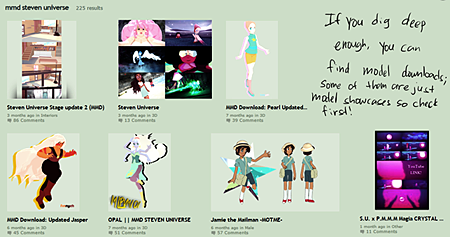
As we all know, DeviantART (hence forth abbreviated as DA from now on) is an online art community that caters to a wide range of art types. For most part, you won’t find an MMD model made from scratch here, nevertheless, there are chances that you will find models that are edited quite nicely, and it’s really simple to get them, too. All you have to do is search “MMD [name of series or character]” and chances are you’ll find what you’re looking for. What’s good about looking for models in DA is that the range of models being made is really wide. You can find characters from non-Japanese series like cartoons or TV dramas. Sometimes you’ll see something along the lines of “Model Showcase” or “Model Series”; those usually contain a picture of a Japanese model and its specifications such as number of bones, joints and expressions; as well as basic rules like permissions for editing, R18 content, and shounen/shoujo ai.
For accessories and stages just type in “MMD [name of item/stage].

dA... Deviant Art will be one of your favorite MMD Resources!

There are times that you will come across some results like lists of models that lead you to different links of downloads. Don’t be afraid to click on those! Lists are very helpful in looking for Japanese models. You can also ‘save’ that list by adding it to your favourites.

Google MMD [your item] to find dA resources.

2. NicoNicoDouga/Nico Seiga:

NicoNico Douga (hence abbreviated as NND from now on) is like the Japanese equivalent of YouTube. Although YouTube is still popular in Japan, NND is more used for uploading anime, video game and and Vocaloid related content. What also makes it different from YouTube is that NND has its own illustration uploading system called Nico Seiga (abbrv. as NS) which allows users to upload art, much like DA.( see ZoidsFanatic’s post “Intro to NND” and HollyLawliet’s post “Welcome to NS“)
If you’re not familiar with their url’s, the one for NND is
http://nicovideo.jp
while the one for NS is
http://seiga.nicovideo.jp
I know there is an English version of the websites, but switching the website to Japanese will give you more results in your searches since some upload videos that are somewhat ‘hidden’ in the English version. To switch to Japanese, go to the bottom of the page and change the country to Japan and the language to “日本語”. Don’t worry if you don’t understand anything, you’ll only be using one feature to make your way around them: the trusty search bar.
Type in “MMD [name of series in Japanese]”. Remember to add the spaces in between MMD and the name because that divides your search into two tags, MMD and the series you’re looking for. This makes the results even more broad while still putting the MMD-related results first. Some videos have specific tags for popular series such as “APヘタリアMMD” for Hetalia, 進撃のMMD” for Attack on Titan, “MMDギアス” for Code Geass and “MMD艦これ” for Kantai Collection. There are a lot more tags similar to them, but if you are not sure of what MMD tag is used for a specific series, or if the tags give you less results, it’s best to stick with the MMD-[space]-series format.
For stages and accessories, type in “MMD [name of item in Japanese]”. Add ステージ in the searches if you’re looking for a stage.
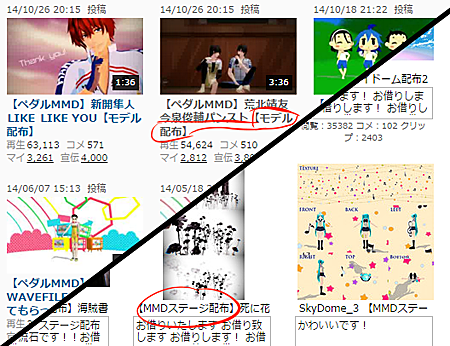
What you want to look for is the one with a title that says “モデル配布” which means model distribution or “ステージ配布” which means stage distribution. Sometimes accessories don’t have these in the title, but one thing that gives them away is that the thumbnail shows the item itself, or a model is showcasing the item.

Carefully "read" the Japanese titles to find which ones contain download links.

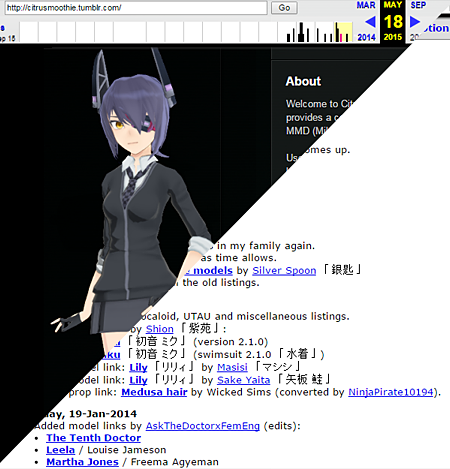
3. mikudance.info and CitruSmoothie:

Mikudance.info and CitruSmoothie served as MMD model databases for the Western MMD community. However both of these sites have shut down, which makes them the hardest to navigate. All hope is not lost, they are still useful in some way. You can find old copies of the websites using the Wayback Machine by pasting their url and navigate from there.

Tenryuu from Kantai Collection, made by Isshiki (壱).

PLEASE DO TAKE NOTE THAT MOST OF THE LINKS ON THESE LISTS ARE DEAD. I SUGGEST NOT CLICKING THEM.

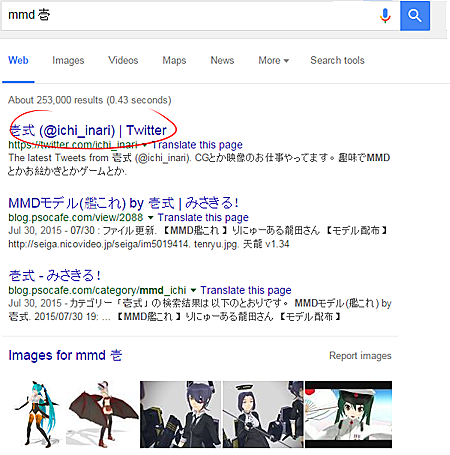
If you want to find a model that you want, look at the model’s info, then get the modeler’s name and google “mmd [name of modeler]” Usually that will lead you to the modeler’s Twitter, NND account or Bowlroll, where there might be an updated version of the model you’re looking for.
Let’s use the model shown above as an example. That model is Tenryuu from Kantai Collection, made by Isshiki ().

Searching for the model maker's name will lead to links for their models.

Pose/Motion Data:

1. DeviantART:

Looking for pose and motion data is easy in DA. Just search for “MMD pose data” and you will see a lot of them made by different users. For motion data, there are a ton of lists that people keep that lead to reliable sources. A good example of this is MMD-Nay-PMD’s Motion Data Index.

2. YouTube/NicoNicoDouga:

Just type in “[name of song] motion data” (for YouTube) and “[name of song in Japanese] モーション” and you should be able to find what you’re looking for.
Okay, this is what I mean by “original resource”. You see, I’ve noticed that YouTube videos that include motion download links which are not from the original maker.
This is how you can tell that it’s not from the original maker:
NOTE: This mostly tells about how to tell if a certain motion data is original or not, since motion data is what I usually notice that’s illegally distributed. However some of these points apply to models and other resources.
   The video doesn’t say anything about the motion data.Nothing is said about who made it or where was the motion based off (e.g. a link to the original video the motion was traced from)
   The video description contains nothing but the download link to the motion. Usually they’re MediaFire links. Unless you can tell that the owner uploaded the motion there (like westernmade motion like memes and vines), DO NOT CLICK THAT LINK.
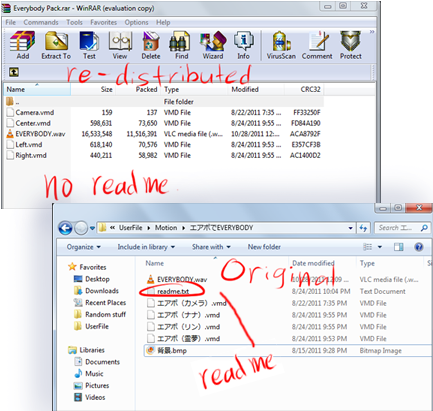
   The motion does not include a ReadMe if you download it. Yes, I have committed this mistake in my early days of Miku-Miku-Dancing. Luckily, I’ve been able to track down the original motion downloads and decided to keep the other ones for reference. Making comparisons with the ‘original’ motion data package, there is no ReadMe attached to it.

Always try to use only an original file, not a redistributed one. Often a redistributed folder will not contain a ReadMe file.
Effects:

1. DeviantART:

I’ll admit that my collection of effects is not very wide. Most of my pictures are either rendered raw or edited in Photoshop; so I only know effects by looking at other people’s work on DeviantART. It becomes very helpful when people say what effects they use. What I usually do is google them or do a search on DeviantART by typing “mme [name of effect]”. Most DeviantART results have a list of downloads that lead to the original download link so don’t worry about it.

2. YouTube:

I don’t trust YouTube download links so much since most of them have the effects compiled and uploaded somewhere else. It is convenient when you think about it, but the fact that they lead the viewer somewhere else other than the original is why I don’t trust them so much. So what do I do when I see an effect that I like? Simple. I google it.
 There you have it…
That pretty much sums up how I find MMD resources. I hope you’d pardon me for this very wordy article ┬┴┬┴┤ω)
Remember to only download items only from sources you can trust; not just for the creator’s sake but for your own. Sometimes file hosting sites have malicious ads that they don’t know about when they host themselves… so stay safe!

BONUS QUICKIE! Passwords… passwords… passwords…

  Passwords are tricky, but they serve as a test if someone wants a model and can prove how “worthy” they are to download them. I’m not going to directly tell you what was each and every password for every model I have nor will I tell you what the hints are; that’d be against the rules! Rather, I’ll show you how I figure out passwords.
   Locate the password hint. Most of them are the sentence after パス. Go on and copy + paste that on Google Translate.
   Think! Think! Think! Since Google Translate isn’t very good at translating Japanese (or any other language) to English, think what could that sentence mean. For example, “Meeting place first” could mean “The place they first met”. Think of the broken translation as a riddle. Password hints sometimes include puns and references that only apply in Japanese, so doing research and thinking outside the box is key.
   List all the possible passwords. Chances are, you might have several answers to that riddle… and several combinations of letters and numbers. Before doing anything else, list them down by typing them on a word processor like Notepad.
  Try them out one by one. If you haven’t gotten it right, don’t give up! The answer could be much simpler than you think. If you got it right, congratulations! Enjoy your newly downloaded model!


Senin, 30 Mei 2016

How do I make a smooth motion in MMD? How do I copy a motion? How do you use Range-Select in MikuMikuDance? How do I make a movement repeat? What is V-Select in MikuMikuDance ?

Copy and Paste for Repetitive Motion in MikuMikuDance
MikuMikuDance has tools that make it easy to create a repetitive motion. In this exercise we will ask Miku to perform a few jumping-jacks for us. We will use the V-Select, Copy, Paste, and the Range-Select functions to get it done quickly.
Open a New dance. Load Metal Miku (or whoever is your favorite).


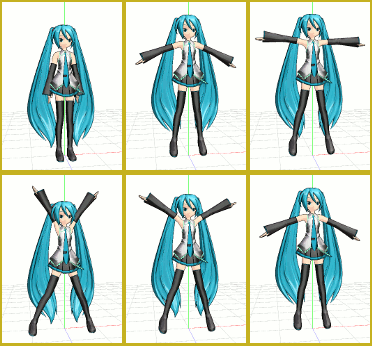
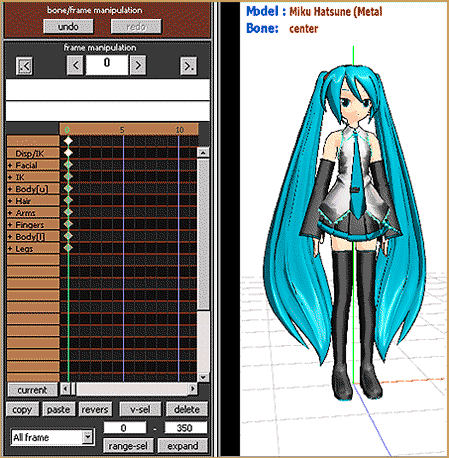
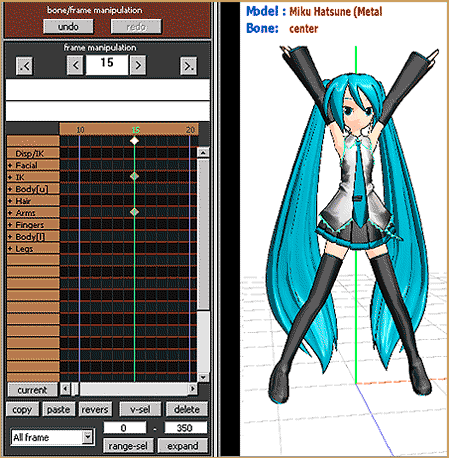
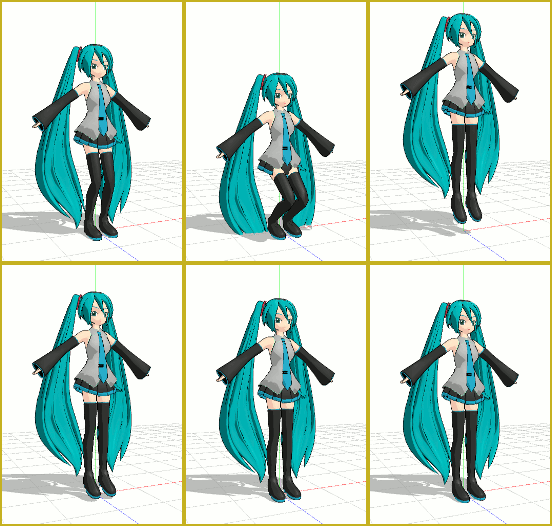
I have decided to make a Jumping Jack require 30 frames for one complete cycle. So … we imagine that in frame zero, she is standing with arms and legs together. In Frame 15, she will be standing there with arms up and legs apart. And, finally, in Frame 30, she will be standing there in the same pose as we saw in Frame Zero: arms 
down and legs together. We will create those frames … and then go back in and add the “jumping” part.
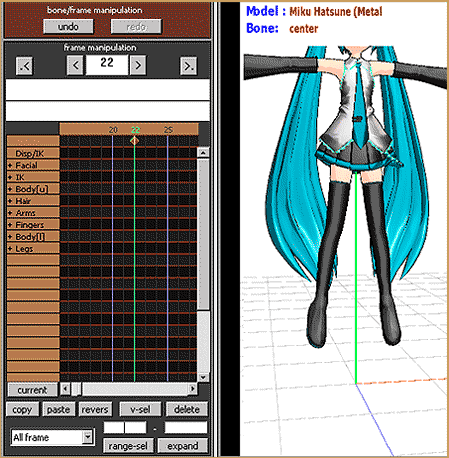
In Frame Zero, adjust the left and right arms to bring them down to Miku’s sides as shown in this first picture. Registeryour moves.


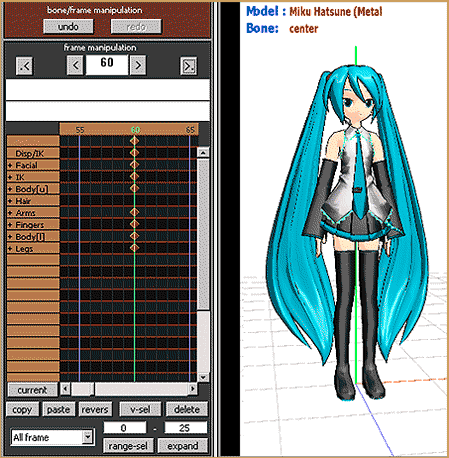
Advance the Frame Counter to Frame 15. Position Miku standing on the floor with arms up and feet apart as shown below:


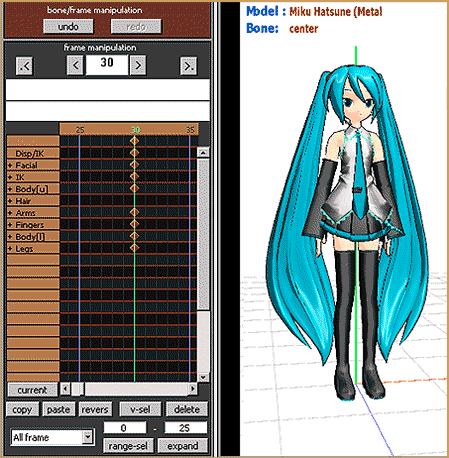
Go back to Frame Zero. Click some Diamond so that it is red. Click V-Select to select all of the diamonds in that frame. (V-Select stands for VERTICAL Select) Click COPY.  Advance the Frame Counter to Frame 30 and Click PASTE to put that Frame Zero Data into Frame 
30:


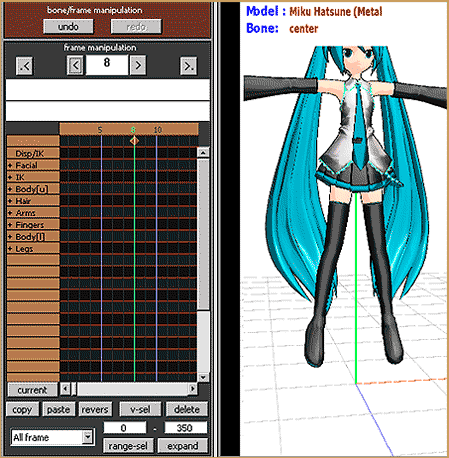
That’s it for one “jumping-jack” cycle. Now we will go in and add the “Jump” part. Set the Frame Counter to Frame 8 … that’s about mid-way between Frames Zero and 15. Select only the Center Bone and raise Miku straight up … ¾ of an inch? Register your position.


Now, with the diamond in frame 8 still red, Click COPY to memorize that diamond. Advance the Frame Counter to Frame 22 … Click PASTE to put Frame 8’s position data into Frame 22:


Next we will use Range-Select to copy the entire jumping-jack so that we can paste it again, and again. In the Range-Sel windows enter a range of 0 – 30. See that the All Frame choice is selected. Click the Range-Select button. See that all the diamonds have turned red. Click COPY to put the selected frame data into memory. Advance the Frame Counter to Frame 30 and click PASTE. Advance the frame counter and see that the new data is in place for a length of another 30 frames … out to Frame 60. Click PASTE, again, on Frame 60, and then advance the Frame Counter out to Frame 90 … and PASTE again. Keep on going for as many Jumping-Jacks as you like:


You can also use Range-Select to choose all frames o-90 … and Copy … and Paste that starting at Frame 90 … and see that the animation is now complete out to frame 180. Keep Going … Miku needs the workout!


That’s it! …
Click PLAY at anytime to see Miku exercising like crazy! … Have fun!

A Beginner’s Guide to Enjoying MikuMikuDance MMD

MikuMikuDance - - - Let's get started!New MMDers download the program after watching some fun and amazing videos on YouTube. (I know I was just amazed that such a powerful animation software was available for free!) Going from the “wonderful videos” to the reality of the “empty coordinate grid” is a bit of a shocker! New MMDers find a complicated GUI and no instructions.

Thank goodness you found LearnMMD.com!

First, Play the Sample Dance …

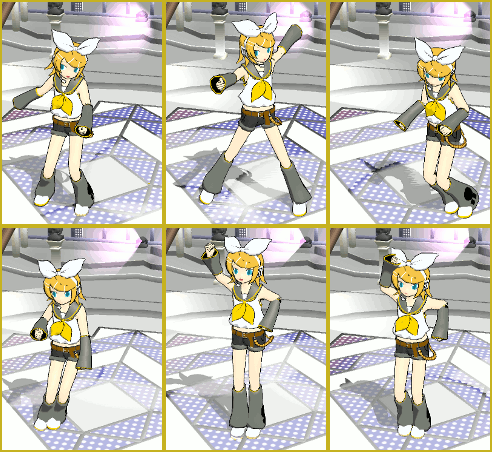
Rin dances the Sample Dance! See the Start Here pages to learn how to swap dancers!


The first thing to do is to go to the File menu and click Open … and select the “sample.pmm” or “sample(AllStar).pmm”, let it load, click PLAY and watch the coordinate grid come to life as MMD shows you what it can do! If your computer is up to the task, the dance will move smoothly (and silently … there is no music included with the sample dance!).

If your computer is a little slow or has a weak graphics card, the dance will be shown in a herky-jerky fashion. The jerky playback is not any kind of a problem for you to be concerned with, yet … Just know that, as you progress into more complicated animations, yourself, you will have some trouble getting a smooth playback of your own creations. You can still process your animations into AVI files that WILL play smoothly using Windows Media Player, Real Player, and the like … and they will be uploadable to YouTube! You will find that your simple, beginner projects will playback just fine.

Metal Miku of MikuMikuDamce ... Ready to rumble!Next, Load a Dancer!

Close the Sample Dance by going to the FILE Menu and selecting NEW. You will, again, see the blank white Coordinate Grid. LOAD a dancer (an MMD model) by clicking the LOAD button near the lower left of the screen. Choose MIKU (everybody does!) … and commence to click and drag everything. Try all the buttons and sliders. Be as rough on poor little Miku as you care to be … bend, contort, flip, twist, waggle … all good clean fun!

Getting around on the Screen …

It took me forever to learn how easy it is to move your point of view around your model and around your stage. (By accident I saw some instructions on the web while I was looking for something else.) Simply right-click an inch or two off to the side of your model and drag your view around … easy! Click your center mouse button and drag to gently move the whole view. In the Upper Right of the white stage screen is a magnifying glass that you can left-click and drag up and down to move in and out of the stage area.  Click and drag that green cross to move the entire view (just like clicking the center mouse button).

Doing this easy Jump Dance shows you how to move your model.

Make a little Jump Dance!


 It’s a great way to learn about adjusting your model, moving through the frames, registering your motions data, and getting to push PLAY for your own first animation.  …There’s another article about “Miku Jumping Jacks”, too. Simple fun!

Kamis, 17 Maret 2016

Hi guys !! Welcome to my Blog, and i will tell you about animation software with (GUI, Graphic User Interface) to Render it into cool awesome video.

    About MMD

   So have you know about software named MMD, or maybe like intrested to try the software after watching some fun and amazing MMD videos on youtube ?

you’re lucky cuz  i will describe almost all about the MMD here. You have to watch video in youtube with keyword “MMD” to know how awesome it is.

Lemme tell you, MMD is the acronym of “Miku Miku Dance”
   “Miku” is the name of the main idol in virtual band named Vocaloid.
And “Dance” have the meaning of aa... you could make Miku dancin in that program, well uh i don’t really know about the details about the meaning behind that, just ask the official site...


Oh well, about MMD lets getting started  !!
   So MikuMikuDance is free 3D animation software for the PC, a modern DirectX”software” MMD is like a toolbox packed with modern digital equipment. So your job is to learn to acces the many tools. And get used to it duhh. To create the animation and videos you can “see” in your minds eye.
   MMD is free software “no charge” and it’s not a software  that take’s some space in the disk, if i remember it’s about 8mb more or less(for the program), at least spare some space for the render. “the sky’s the limit’s” as to what you can create with it, it’s just like a complete freedom ! there are tons of copy of the Software available for download.


Freedom Within Limits
   MikuMikuDance is an art program “given to us” by Yu Higuchi, one of the leading 3D program developers of Vocaloid characters on Nico Nico Douga. MMD was developed as a promotional tool to sell the Yamaha/Sony/Sega/Vocaloid Products. The MikuMikuDance program, itself is distributed from the VPVP homepage, and redistributed throught the LearnMMD.com page, note : just check the website for the details.

 The characters (The dance models), and the props and accessories included with your download are free to use/copyright-free. No music is included with your MikuMikuDance download, you have to add your own tunes, or you can download other’s MMDers creation from the internet.
   About COPYRIGHT ownership is an issue. Everything included in your original download is yours to use. ANYTHING else you download for your use probably belongs to someone else. There are hundreds of MMD models and thousands of accessories available for download 99.9% of it is not for sale, so everything is free to download. Each model or item is created by an artist who wants credit for what they have created. Most things you download will include a ReadMe.txt file in which the artist give him/her permissions, lets you know if you can make changes to him/her model, if you have permissions to redistribute the model, that kind of thing. Often, that ReadMe file is in Japanese. You are still responsible for the content of the ReadMe.      

   LearnMMD.com is the website that spells-out the proper MMD Etiquette for the use, alteration, and sharing of the intellectual property created by MMD artist. Visit that page and read throgh it so you can learn what it takes to be a rensposibe member of MMD users. Music and Motion is generally copyright-protected... but you can usually get away from it !

   There are tons of music and motion files available for download. Many were created by MMDers using Vocaloid or some other software, and many are popular songs translated by MMDers who make the files available for download but the way we MMDers use it, in an artistic, not-for-profit way, will usually allow our videos to slip-through the system and remain on display on YouTube. YouTube does have a copyright policy, and they may flag your video as a possible infringement but let it stay online. They may also remove your video with a note that your video was pulled down due to copyright infringement issues. So be it!

Getting started with MMD !!!
Finally, here we go !

Create animations from scracth

Doing this easy Jump Dance shows you how to move your model.

LearnMMD.com has several articles written to help MMD newbies with doing MMD. I recently read the article for the basics info you will need as you begin to create your own animations.
There is some info there, along with links to other LearnMMD articles that show you how to move the models, add a stage, and manipulate the accessories and props that you will be using.

Create comics, art images and pictures.

Use MMD as a tool for assembling 3D models to make pictures and comics!
Load your models and props, set the stage, adjust the lighting, “take the picture”, and open that picture in your art program so that you can crop the image, adjust the levels,  and add captions and type to your image.MikuMikuDance has a picture-taking function that captures your screen image and saves it any of several popular file formats. You can also automatically drop-out the black background of your picture to capture just the model against a transparent background.

I like to set MMD, using the View Menu, to “View Separate Window”, to show me my stage image as large as possible on my monitor, and then I use the keyboard key “Print Screen” to put that image into memory. I then open a New window in Photoshop, GIMP, or Paint and Paste the picture image into place. I can then crop, resize and adjust the picture as I wish, Fun!Enjoy MikuMikuDance 


It’s Fun, it’s Free, it sets your creativity free!